
Appearance
Getting around
This page shows the main ways to move around Aurora: the Home dashboard, the sidebar, tabs and split view, and the keyboard tools for finding pages fast. Shortcuts are shown for macOS; use Ctrl instead of ⌘ on Windows and Linux.
Home
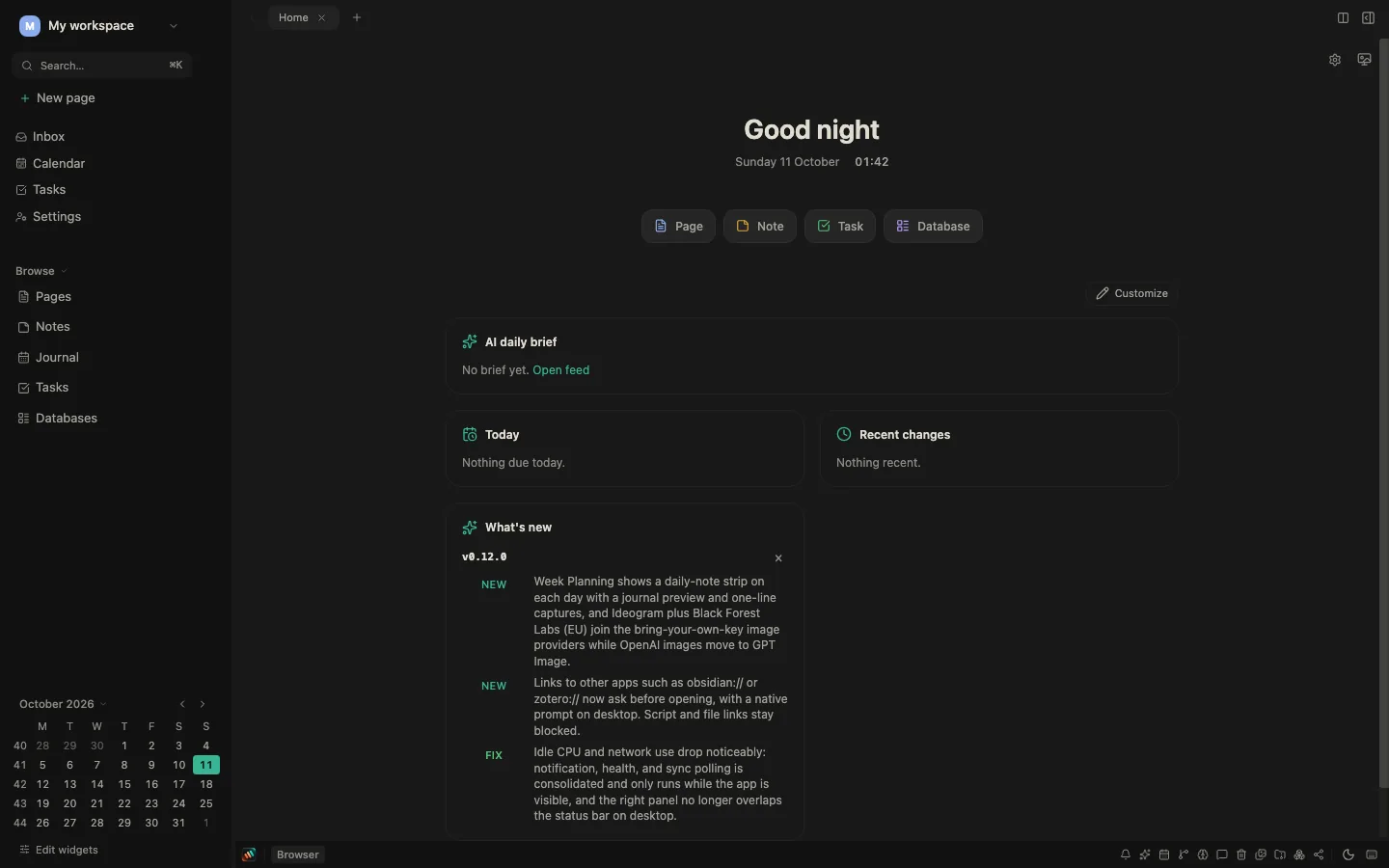
Home is a dashboard made of widgets. Click Customize to change it:
- Show or hide widgets, move them up or down, and switch a widget between narrow and wide.
- Start from a preset: Overview, Planner, Writer, Minimal, Analyst or Explorer.
- My layout brings back your own arrangement at any time. Trying a preset never overwrites it.
- Save as view stores the current arrangement under a name. Saved views follow your account across workspaces and devices.
Click Done when you are finished.
Available widgets include AI daily brief, Today, Recent changes, Pinned, Favorites, Habits, Quick capture, Scratchpad, Countdown, Upcoming, Assigned to me, This week, Calendar, Board snapshot, Database view, Database metric, Stats, Graph, Backlinks, Mentions, On this day, Resurface, Templates, Shared with me, Team activity, Sync health, Storage, Bookmarks, Focus, What's new and Tip of the day.
Home screen settings let you show or hide the clock, the date and the weather. Weather needs an AuroraCloud account.
For you
For you (/for-you) is a feed of daily briefs for your workspace: new pages, pages that have not been touched for a while, and tasks that are due, with links to each. When AuroraAI is available to you, the brief is written as a short summary; otherwise you get a plain list.
Briefs are only made for AuroraCloud workspaces, are sent to the workspace owner, and are never made for encrypted workspaces. Click Mute to stop new briefs, and Unmute to turn them back on.
Calendar
Calendar (/calendar) shows your tasks and journal entries by date. Choose Month, Week or Day at the top, and Today to jump back to the current date.
- Click a date to select it. Double-click to open that day's journal entry.
- In Week view, drag a task to another day or hour to reschedule it.
- External calendars shows or hides events from connected calendars. See External calendars.
- Plan week opens Week Planning (
/week), where you schedule tasks for the week ahead.
On a phone, Week view is not offered; Calendar opens in Day view instead.
The sidebar
The sidebar on the left holds your navigation links, pinned pages, favorites, recently visited pages, the Journal and your spaces.
- Press
⌘\to switch the sidebar between full width and a compact icon rail. - Choose which links appear in the sidebar, in the status bar's icon bar, or nowhere, under Settings → Preferences → Sidebars & navigation. See Customization.
Tabs
Pages open in tabs along the top of the main pane.
- Click + at the end of the tab bar to open a new tab. In the desktop app you can also press
⌘T. - Click the × on a tab to close it, or right-click it and choose Close tab.
- The arrow at the left of the tab bar goes back. When you are not typing, Backspace also goes back.
Split view
Split view shows two pages side by side.
- Press
⌘⇧D, or click the split button at the right of the tab bar, to open or close split view. ⌘⇧+click a link to open it in the split pane.- Right-click a tab and choose Open in split view.
- Drag a tab from one pane to the other to move it.
- Press
⌘⌥→to focus the right pane and⌘⌥←to focus the left pane. New pages open in the pane that has focus.
To make a page type always open in split view, set it under Settings → Preferences → Sidebars & navigation → Default open mode.
Quick jump
Press ⌘⇧O to open Quick jump. It lists your Recently opened and Recently created pages. Type to filter the list, then press Enter to open a page.
Command palette
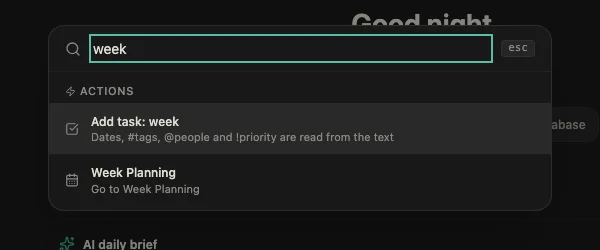
Press ⌘K to open the command palette. From there you can:
- Search page titles and page content.
- Create a New page or New task.
- Type a task and choose Add task. Dates,
#tags,@peopleand!priorityin the text are filled in for you. - Create a page from a template.
- Go to any part of the app, such as Inbox, Tasks, Calendar, Week Planning, Graph, Trash or Settings.
Quick capture
Press ⌘J anywhere in Aurora to capture a thought without leaving the page you are on. Choose Note or Task. Notes go to your Inbox. Press ⌘Enter to save, or choose Save and open to go straight to the new note.
For every shortcut, see Keyboard shortcuts.