
Appearance
Tasks
Tasks are first-class pages in Aurora. They live alongside your pages and databases, share the same editor, and appear on the Tasks board and on the calendar.
Creating tasks
- Type a task into the field at the top of Tasks, for example
Call Ann fri 3pm #calls !2. Aurora picks up a due date and time,#tags,@people,!1to!4for priority,/listfor a task list and*statusas you type, and shows them as chips you can remove. The same field is available in the command palette. - Click New task on the Tasks page, or Add task at the bottom of a board column.
- Use quick capture (
⌘J, Ctrl+J on Windows and Linux) to capture a thought without switching context, then convert or file it during Inbox triage.
Task properties
| Property | Description |
|---|---|
| Status | Backlog, To do, In progress, Done by default. Use Manage statuses to add, rename, recolour or remove them, and to choose which count as done. |
| Priority | No priority, Low, Medium, High, Urgent |
| Due date | Date and optional time |
| Assignees | One or more workspace members |
| Tags | Free-form labels |
| Task list | Groups tasks by project. Use Manage task lists to create and reorder lists. |
Tasks can also have subtasks and a description.
Kanban board
Click Board on the Tasks page. Tasks are grouped into columns by status, and each card can surface key planning metadata like due date, priority, tags, task list, assignees, and subtask progress. Use the Properties menu on the board to switch between Minimal, Balanced, and Detailed presets, hide individual card fields, switch off tinted column/card backgrounds, or open the task-list and status managers. Each column also has its own options menu for quick rename/color, collapse, hide-when-empty, and WIP limits. Drag a task card to move it to a different status.
Use Filter and Group by to narrow the board or group it by status, list, assignee, due date or priority. Cards move between columns only when the board is grouped by status. List shows the same tasks as a list.
The board also supports a keyboard workflow: the arrow keys move between cards, Space picks a card up so you can move it with the arrows, Enter opens a task, X adds a card to the selection, M moves the selected tasks to the next column, N creates a new task in the current column, and Delete deletes the selected task.
On the calendar
Tasks with a due date appear on the Calendar page, in month, week or day view. Click a day to list its tasks beside the calendar. See Getting around for more about the Calendar page.
Journal integration
Tasks you create inside a journal entry are filed under that entry. Add a due date to put them on the calendar.
Recurring tasks
Tasks can repeat on a schedule. Open a task and pick a pattern from the Repeats row in the editor:
| Mode | Example |
|---|---|
| No | One-shot task (default) |
| Daily | Every day, every other day, every 3 days, … |
| Weekly | Every Monday and Friday; every other week on Mon/Wed/Fri |
| Monthly | The 1st of every month; every 3 months on the 15th |
| Yearly | June 12 every year |
| Custom… | Any RFC 5545 RRULE you can paste, e.g. FREQ=WEEKLY;INTERVAL=2;BYDAY=MO,WE,FR;UNTIL=20270101T000000Z |
The Weekly mode shows a 7-button weekday picker; the Monthly mode shows a "On day N" input. The interval input lets you change every N — every 2 weeks, every 3 months, and so on.
How recurrence works
When you mark a recurring task Done, Aurora:
- Reads the task's recurrence rule.
- Computes the next occurrence after the task's due date (or after today, if the task didn't have a due date).
- Creates a fresh Todo task with the same properties (priority, assignees, labels, description, task list, recurrence rule) and the new due date.
- Removes the recurrence rule from the task you just completed, so completing it again can't create a second copy of the next occurrence.
The completed task remains a historical record of that one occurrence; the new task carries the chain forward. Editing the new task's recurrence rule changes future occurrences from that point onward.
If you move the completed task back out of Done, Aurora removes the occurrence it just created. It keeps that occurrence instead if you have already edited it, or if it couldn't be checked because you are offline, and tells you so.
On the calendar and in the journal
Recurring tasks render on every matching date in the calendar view, not just the current concrete instance's date. A weekly-on-Mon-Wed-Fri task shows up on Mon, Wed, and Fri across the visible month. The Due today list on the Home dashboard picks up any recurring task whose rule matches the current day, even after you've completed today's instance and the chain has rolled forward.
Terminating a recurrence
Two ways to stop a chain:
UNTIL=YYYYMMDDTHHMMSSZin a custom RRULE caps the chain at a specific date. Aurora honoursUNTILand won't generate occurrences past it.- Set the Repeats dropdown back to No. The current task becomes one-shot; completing it won't generate a successor.
Limitations
- Editing "this occurrence" vs "this and all future" isn't yet a separate dialog — editing the live task changes the rule for all future instances. To detach a single instance, set its Repeats to None first, then complete it; the chain breaks at that point.
COUNT=Nterminators are parsed and round-tripped but not yet honoured by the chain. UseUNTILto cap a chain.- Task rows in database and list views don't show that a task repeats; you see it in the task editor.
Week planning
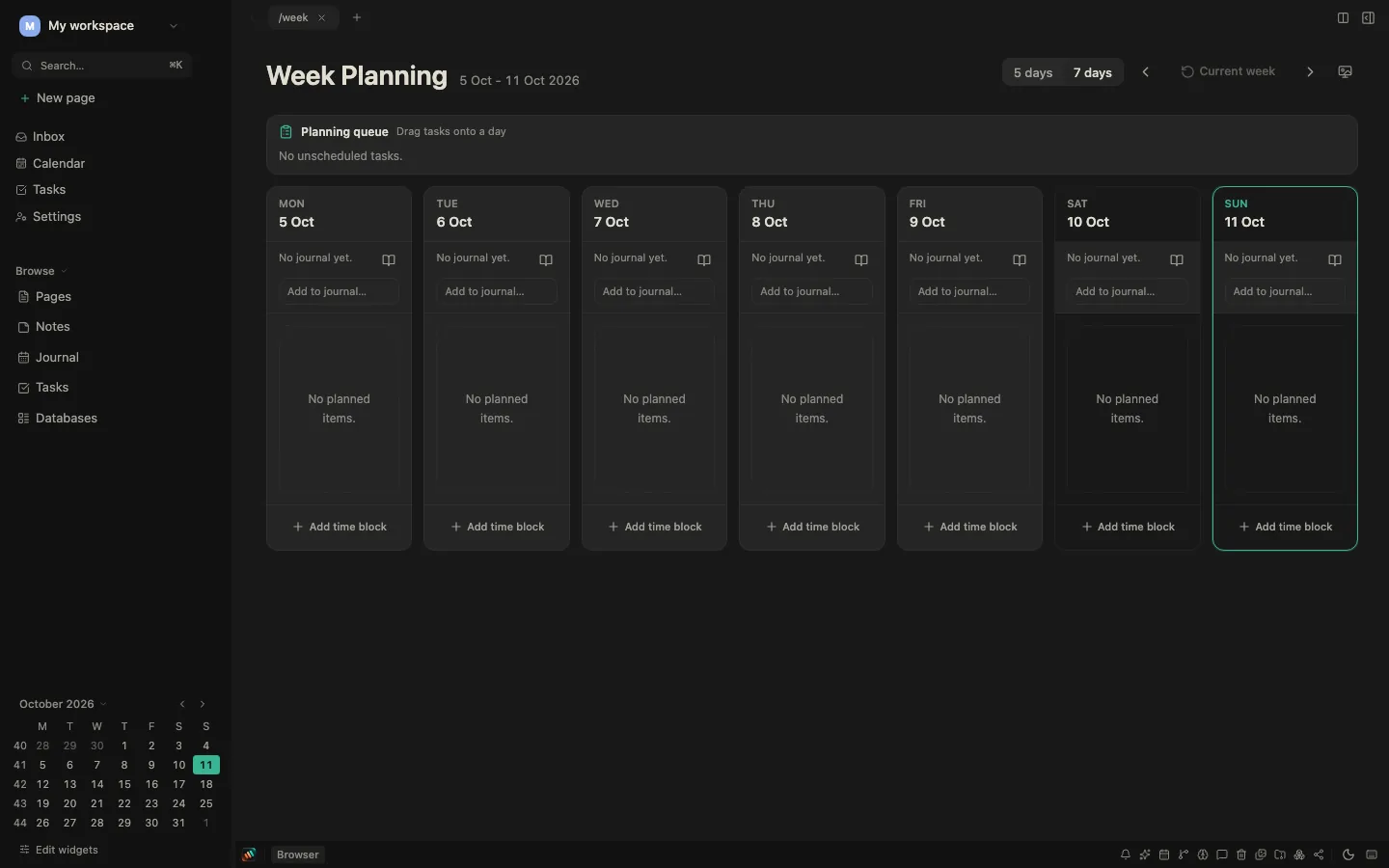
Week Planning in the sidebar (or Plan week on the Calendar page) lays the week out as a board — Monday first — with your unscheduled tasks in a Planning queue above the days. Drag a task from the queue onto a day to schedule it, drag it between days to move it, and drop it back on the queue to take it off the week entirely.
Each day shows how many items are planned, a short journal strip (preview of that day's journal plus a one-line capture field), and a control to open the full journal entry. The plan and the writing stay in one place without turning the board into seven editors.
Time blocks
A day is not only a list. Add time block opens a small composer on that day — a title, a start time, and a duration — and creates a block for it. A day that looks full at three items can then be told apart from one that is actually full.
Five days or seven
Days shown switches between 5 days and 7 days. Five is the working week; seven is for people who plan across the weekend.
Email reminders
In an AuroraCloud workspace you can get an email before a task is due. Turn on Enable email reminders in Settings → Preferences → Notifications and pick how early: 1 hour, 3 hours, 1 day, or 2 days before. The setting is per workspace.
- You get reminders for open tasks that are assigned to you or to nobody. Tasks marked Done don't send one.
- A due date without a time counts as 09:00 that day. Times are read in your saved timezone.
- Each reminder is sent once. If the reminder time had already passed when you set the due date (for example, a task due in two hours with a one-day lead), no email is sent for it.
- The email links to the task and has an Unsubscribe link that switches task email reminders off for that workspace.
- Your app sends the list of tasks to remind you about while it is open, and the server sends the email at the right time even after you close it. A due date you set or change comes into effect the next time the app is open and online.
In an end-to-end encrypted workspace the server can't read your tasks. The email says only that you have a task reminder in that workspace, never the task's title. To send it, the server stores each task's due time (not its title or any other content) while reminders are on; turning them off deletes those times.
Due today
Once a day, from 08:00 in your saved timezone, the notification list shows a Tasks due today notice with how many open tasks assigned to you or to nobody are due that day. It is an in-app notice only, with no email or push. Encrypted workspaces don't get it, because the server can't read their due dates.
Quick capture
Press ⌘J from anywhere in the app to open Quick Capture. Type a thought and save it to Inbox without changing context. From Inbox, tag it, move it, or convert it into a task.
Templates
Templates live in the template library at /templates, not in Settings. You can create a new page from a template or insert one into the page you're editing. See Templates.