
Appearance
Templates
Templates give you a head start on common page structures. Aurora ships a library of built-in templates and lets you turn any page into a reusable template or save blocks as a snippet. A template can also repeat on a schedule.
Template library
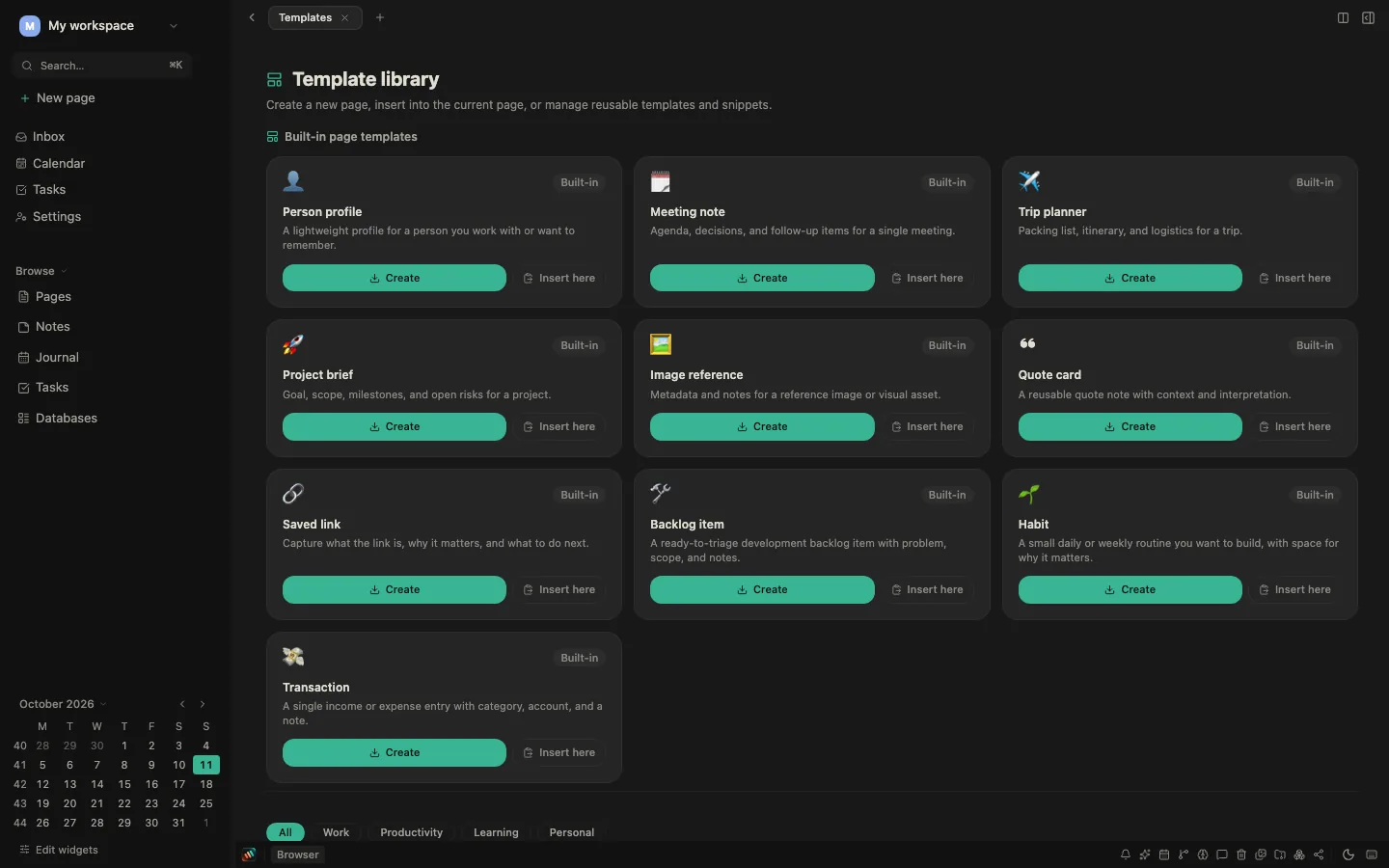
Go to /templates, or click Templates in the sidebar, to open the Template library. It has these sections:
| Section | Source |
|---|---|
| My snippets | Blocks you've saved as snippets |
| My templates | Pages you've marked as templates |
| Built-in page templates | Starter templates for built-in page types |
| Habit routines | Ready-made sets of habits, shown when the Habit type is turned on |
| Gallery | Ten built-in templates, filtered by category |
Built-in gallery templates
| Template | Default type | Category |
|---|---|---|
| Meeting notes | Page | Work |
| Weekly review | Page | Productivity |
| Project plan | Page | Work |
| Book notes | Page | Learning |
| Daily standup | Note | Work |
| Habit tracker | Note | Personal |
| Brainstorm | Page | Productivity |
| OKR – Objectives & key results | Page | Work |
| Language learning | Page | Learning |
| Travel planner | Page | Personal |
Use the category buttons above the gallery to filter it, and the Page, Note and Task buttons on each card to choose which type the template creates.
Built-in page templates
Several optional page types come with a starter template:
- Person profile, Meeting note, Trip planner, Project brief, Image reference, Quote card, Saved link, Backlog item, Habit, Transaction
Templates for page types you have hidden in Settings → Workspace → Page types are left out.
Habit routines
When the Habit type is turned on, the library offers three routines: Morning routine, Focus sprint and Wind-down. Click Create routine to add its habits. See Habits.
Using a template
Built-in templates have two actions:
- Create makes a new page from the template and opens it.
- Insert here adds the template's content to the page you're editing.
Your own templates have Create. Your snippets have Insert here.
Empty page suggestion
When you open an empty page, Aurora shows a See templates button. It takes you to the library with that page selected, so Insert here sends the content straight back into it.
Sidebar quick-create
If a page type has templates, clicking + on that type's sidebar section shows a picker with Blank and each of your templates. Without templates, + creates a blank page directly.
Templates also appear in the command palette (⌘K, Ctrl+K on Windows and Linux). Search for a template name and choose it to create a new page from it.
Creating your own templates
Mark any page as a template
- Open the page.
- Open the page's
···menu. - Choose Mark as template.
The page now appears in the sidebar's Templates section and in the library under My templates. Choose Remove as template to turn it back into an ordinary page.
Save blocks as a snippet
Snippets are smaller: a piece of content you want to reuse without a full page structure.
- Click the block handle to the left of a block (or long-press the block on a phone).
- Choose Save as snippet.
- Give the snippet a name and choose Save snippet.
Aurora saves the blocks as a snippet. It appears in the library under My snippets.
Recurring templates
A template you made yourself can create a new page on a schedule, such as a daily journal page, a weekly meeting note or a monthly report.
- In the library, find the template under My templates.
- Click Does not repeat on its card and choose how often it repeats.
- Optionally set Title for each new page. You can use
,,,and. Without a pattern, pages are named
New pages are created on your device while Aurora is open. Nothing is scheduled on the server, so end-to-end encrypted workspaces work the same way. If several of your devices are open, they create the same page once, not one each. A page you delete is not created again for that date.
To stop a template repeating, open its schedule and set it back to not repeating.
Tips
- Start with the built-in gallery templates. They cover the most common patterns.
- Turn meeting notes or project briefs into templates once you have a structure you like.
- Use snippets for smaller reusable blocks like standard disclaimers, table structures or checklists.
- Templates are normal pages. You can edit them at any time, and future uses pick up the changes.